Managing products and services
À l'issue de ce chapitre
- create a product or a service and complete its sales, purchase and inventory tabs;
- handle the variations of a single item through attributes and variants;
- structure the catalogue with categories and tags;
- build a pricing policy through pricelists and discounts.
In Odoo, the word product covers a physical good just as much as a service. The product sits at the centre of most processes: it is sold, purchased, stored, manufactured and invoiced. The quality of the catalogue therefore has a direct bearing on how effective the sales, purchasing and logistics teams can be.
Product types
The Product Type field offers three values:
| Type | Use |
|---|---|
| Goods | A physical product that you supply: raw material, component, merchandise, finished product. |
| Service | An intangible service: consulting, maintenance, training, labour. |
| Combo | A set offered for sale from which the customer makes one choice per category. |
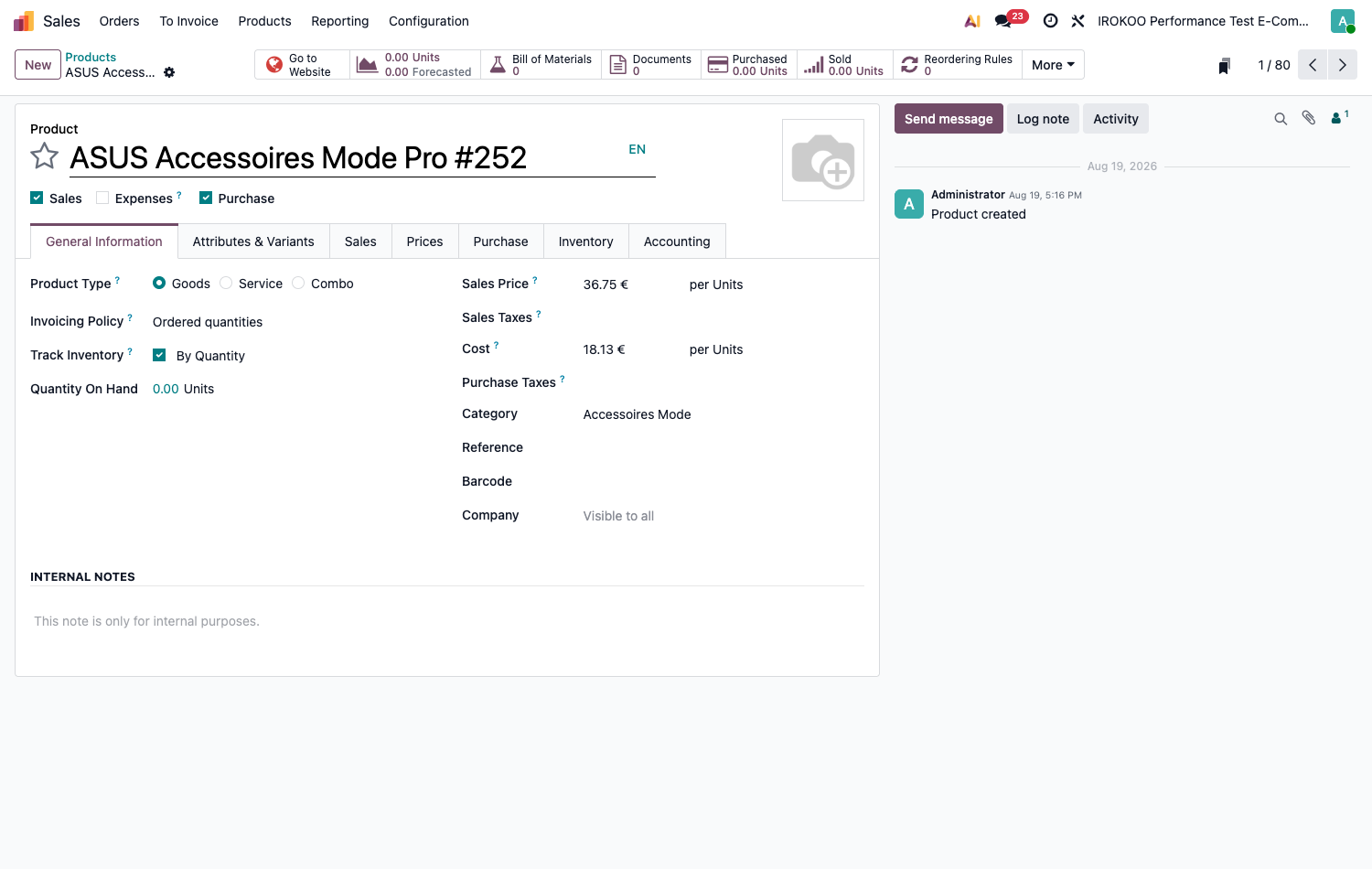
For products of type Goods, the Track Inventory checkbox, in the General Information tab and below the product type, distinguishes products whose stock is tracked from those that are not.
Note
It is the Track Inventory checkbox (not the product type) that determines whether Odoo keeps stock. A consumable whose quantities you do not want to track stays of type Goods, with the box cleared.
Creating a product
The catalogue can be reached from several apps: Sales › Products › Products, Purchase › Products › Products, Inventory › Products › Products or Manufacturing › Products › Products. It is the same catalogue: the path taken only changes the filters offered by default.
- Open the product list and click New.
- Fill in the product name.
- Below the name, tick the Sales and Purchase boxes, which determine where the product will appear. They sit above the tabs, not inside one of them.
- In the General Information tab, complete: - Product Type; - Sales Price and Cost, each followed by the taxes that apply to it; - the unit, entered after the price following the word per, it only appears when the units of measure option is enabled; - Category; - Reference and Barcode.
- Complete the Sales, Purchase and Inventory tabs as needed.
- Save.
Sales tab
- Quotation Description: text carried over onto customer quotations and invoices.
- Packagings and up-selling or cross-selling products.
- Online sales options, if the website is installed.
Purchase tab
This tab holds the Purchase Description (text carried over onto requests for quotation) the bill control policy, and above all the list of vendors referenced for this product.
Note
Taxes are not in these two tabs: sales taxes sit under the Sales Price, purchase taxes under the Cost, both in the General Information tab.
Vendor lines
Each line describes a purchasing condition: a vendor, a price, and the context in which that price applies. A single product often carries several: several vendors, or the same vendor with quantity breaks.
| Field | Role |
|---|---|
| Vendor | The party the product is bought from. |
| Vendor Product Name Vendor Product Code | The product's name and reference on their side. Carried over onto the request for quotation in place of yours, which saves the vendor from having to translate them. Left empty, your own labels are used. |
| Quantity | The quantity from which the price on the line applies. It is a threshold, not an order quantity. |
| Unit | The unit in which the quantity and the price are expressed. It may differ from the product's own: buying by the kilo an item stocked by the unit. |
| Unit Price and Discount (%) | The negotiated price, and the discount if any. It is the price after discount that is used for comparison. |
| Start Date End Date | The validity period of the price. Outside that period, the line is ignored. |
| Lead Time | Number of days between confirmation of the order and receipt. Feeds the computation of replenishment dates. |
| Product Variant | Restricts the line to one specific variation. Left empty, it applies to all variants. |
How Odoo picks the line
When creating a request for quotation or a replenishment, Odoo does not simply take the first line. It first discards the ones that do not fit, then keeps the best of those remaining.
A line is discarded if:
- today's date falls outside its validity period;
- the quantity to be ordered is lower than its Quantity: converted into its unit where necessary;
- it targets a variant other than the one being purchased;
- a vendor has already been imposed and it is not theirs.
Among the remaining lines, Odoo keeps the one whose price after discount is the lowest, all prices brought back to the company currency. At equal prices, the Sequence decides: that is, the order of the lines on screen.
What this means in practice
- Quantity breaks are entered as separate lines for the same vendor, with increasing quantities. Odoo picks the applicable break on its own.
- The order of the lines is not an order of preference as long as prices differ: price decides. To impose a vendor despite a higher price, you have to select them by hand on the request for quotation.
- A line whose minimum quantity is never reached is never used. That is the usual cause of a price that "will not apply" on an order.
Lines created automatically
Some lines appear without having been entered. When a purchase order is confirmed, Odoo adds the vendor to the product record if they are not already there.
The behaviour is worth knowing, because it is narrower than it looks:
- it is triggered when the purchase order is confirmed, not on receipt nor on validation of the vendor bill;
- it only acts if the vendor is absent from the list. An existing line is never updated, even if its price is zero or out of date;
- it stops beyond ten vendors referenced for the same product;
- the line created receives the price of the order, converted where necessary into the product's unit, the discount applied, a Quantity of 1, a Lead Time of 0, and is placed last.
Point d'attention
A Lead Time of 0 on a line created automatically means "delivered the same day" for the computation of replenishments. On an item with a long lead time, that is wrong and nothing flags it. Go back over the lines created this way and enter the real lead time.
Astuce
Since an existing line is never updated, a price renegotiation does not propagate on its own: the new price is entered by hand, or added as a new line with its validity period, the old one being given an end date.
Note
The price on a vendor line must not be confused with the product's Cost, which obeys an entirely different mechanism (see section 9.7.1).
Astuce
Always enter at least one vendor per purchased product: without a line, neither the request for quotation nor automatic replenishment knows who to turn to or at what price.
Point d'attention
The Lead Time on the vendor line drives the trigger dates for replenishment. A lead time left at its default value on an item with a long supply time produces orders launched too late, with no alert to signal it.
Inventory tab
The Logistics block gathers what follows the goods:
- the Responsible for replenishment;
- the Weight and the Volume, used by the shipping modules;
- the Customer Lead Time, which shifts the promised date;
- the HS Code and the Origin of Goods, for international trade.
Three text areas follow, carried over onto the logistics documents: the description for receipts, the one for delivery orders, and the one for internal transfers.
Note
The Routes field also appears in this tab, but only if at least one route is declared as selectable on products: replenish on order or dropshipping, for example. Without them, the line does not appear (see chapitre 16).
Prices tab
It gathers the pricelist rules that target this product, covered in section 9.6.1.
Accounting tab
It carries the Income Account and the Expense Account to be used for this product, in derogation from those of its category.
Writing a description with the assistant
The built-in artificial intelligence helps write the catalogue texts. There are two very different moves: one occasional, in the editor; the other systematic, through a dedicated field.
Note
The assistant belongs to the Enterprise edition and requires prior configuration: mandatory on odoo.sh and on-premise, optional online. Settle this point before tackling the procedures that follow: see section 3.3.4.
While typing
In any rich text field (the product Description, an email, a note) the assistant is called directly:
- Place the cursor in the field.
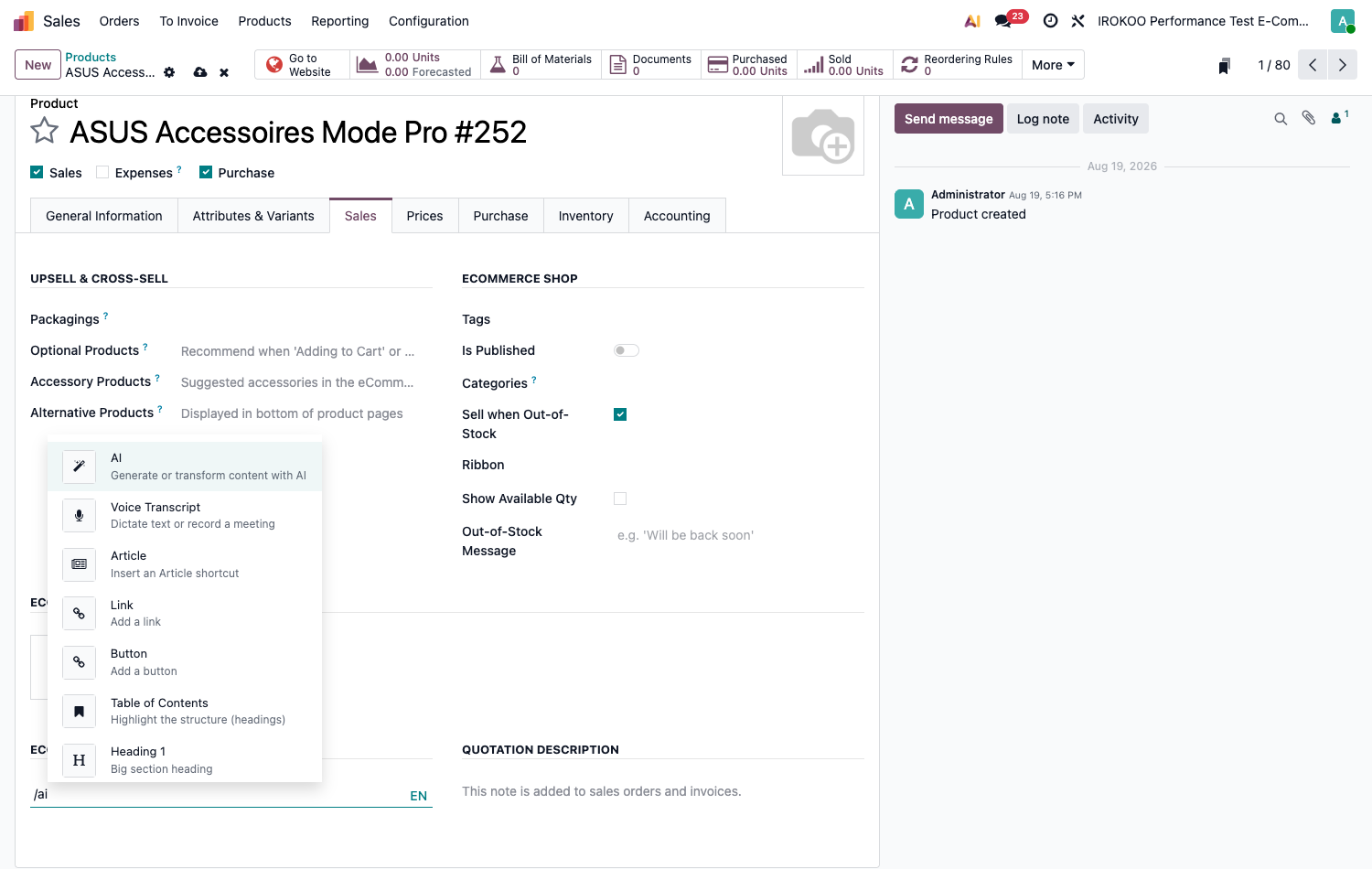
- Type
/to open the insertion menu, then choose AI in the AI Tools category. - Describe the text you want.
- Read the proposal, then insert it.
To rework an existing passage, select it: an assistance button appears in the toolbar and lets you rewrite it, shorten it or change its tone.
Note
This is the everyday move, and it is enough in the vast majority of cases. The text produced becomes ordinary content, which you are then free to correct. This mechanism works throughout the database and is described in section 4.3.2.
Point d'attention
The insertion menu only exists in rich text fields. On a product record, the Description benefits from it; the Quotation Description and the Purchase Description are plain text fields and do not offer this menu.
Through a dedicated field, for a whole catalogue
When the same kind of text has to be produced on hundreds of records, an AI field saves repeating the instruction. Its value is generated from the content of the record: name, category, attributes, characteristics.
- Open a product record and click the Studio icon in the top bar (see chapitre 23).
- From the left-hand panel, drag AI Field to the place you want.
- Choose the Field Type: Text, Multiline Text or HTML.
- Write the instruction describing the text expected, naming the fields to draw on.
- Save and leave Studio.
The field then appears on every product record and offers to generate its value there.
Astuce
Keep this second route for mass processing. For an isolated record, the editor command gives the same result without adding anything to the form , and a field added by Studio stays visible to everyone, on every record.
Point d'attention
Installing Studio on a database on the Standard plan automatically triggers the switch to the Custom plan (see chapitre 23).
Point d'attention
The text produced is a proposal, not an approval: it commits the company as soon as it appears on a quotation. Proofreading remains necessary, particularly on technical characteristics and regulatory statements.
Managing variants
Variants save you from creating as many records as there are variations of the same item: size, colour, material, finish. A single record carries the catalogue entry, the description and the photos; the variations are told apart by their attributes.
First enable the Variants option in Sales › Configuration › Settings. It brings up the Attributes & Variants tab on product records and the Sales › Configuration › Products › Attributes menu.
Choosing the creation mode
This is the decisive setting, and it is made on the attribute, not on the product. The Variant Creation field drives what Odoo actually builds:
| Mode | Effect |
|---|---|
| Instantly | All possible combinations are created as soon as the attribute and its values are added to the product. Each variation becomes an item in its own right: stock, cost, barcode, reference. |
| Dynamically | The variation is only created at the moment it appears on an order. The catalogue stays light, and only the combinations actually sold exist in the database. |
| Never | No variant is created. The choice is recorded on the order line as an option, and may carry a price supplement, but it does not constitute a separate item: no stock of its own, no reference of its own. |
The choice follows from the number of combinations and the need to track them. Three sizes and four colours make twelve items in Instantly mode; six attributes with five values each make more than fifteen thousand, and Dynamically mode becomes unavoidable. Conversely, an engraving or gift wrapping justifies no separate item at all: that is Never mode.
Point d'attention
The creation mode can no longer be changed once the attribute is used on a product: Odoo refuses to save and lists the products concerned. This point is therefore settled before loading the catalogue, not after.
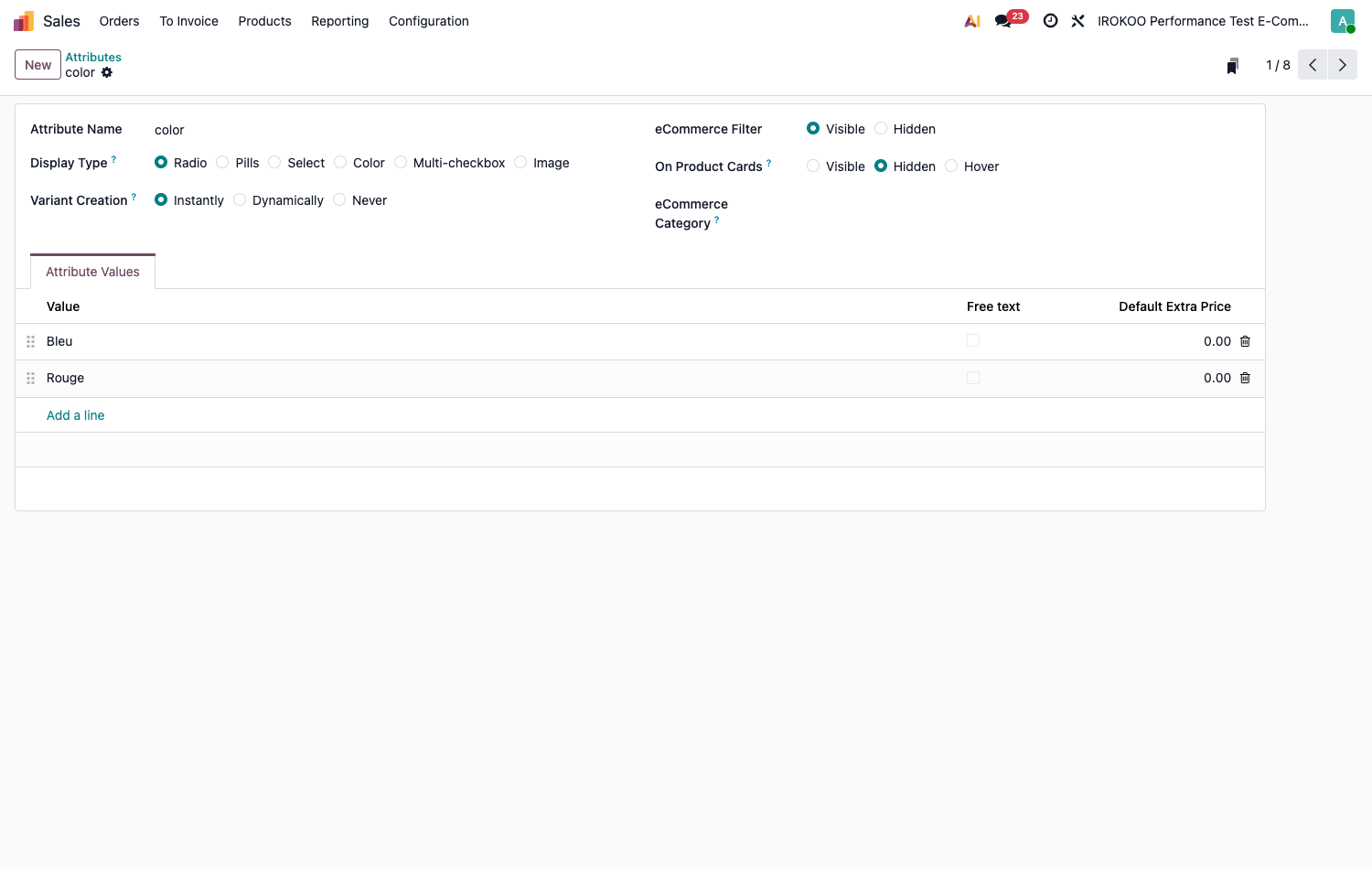
The Display Type field (Radio, Pills, Select, Color, Multi-checkbox, Image) determines how the choice is presented to the customer in the configurator and in the online shop. It has no effect on the variants generated, with one exception: choosing Multi-checkbox automatically switches creation to Never, since several boxes ticked at once cannot designate a single variation.
Astuce
Ticking Free text on a value lets the customer enter their own: an engraving text, a custom dimension. What they type is carried over onto the order line.
Applying attributes to a product
- Open the product and select the Attributes & Variants tab.
- Add a line and choose an Attribute.
- Select the Values kept for this product: an attribute may offer eight colours while a given product only comes in three.
- Save. Odoo generates the combinations according to the mode set on the attribute.
Point d'attention
Every change to this list regenerates the whole set of combinations, and the operation is not symmetrical.
Adding a value multiplies the variations: going from three to four sizes on a product already available in five colours takes you from fifteen to twenty items. Beyond a thousand combinations to generate, Odoo refuses the operation and invites you to switch the attribute to Dynamically mode.
Removing a value destroys the variations that have become impossible. Those that appear on a sales order, or that carry lots or serial numbers, are archived: the history and the documents stay intact. The others are deleted, and their internal reference, their barcode and their reordering rules disappear with them. Restoring the value recreates blank items, without that information.
Astuce
Before touching the attributes of a product already on sale, note down the internal references and the barcodes of the variations concerned from the Variants smart button. That is the only backup of what regeneration can erase.
Adjusting prices and references
The Variants smart button gives access to the list of variations. Each one carries its own internal reference, its barcode and its stock.
The price supplement, on the other hand, is entered in the Attributes & Variants tab of the product, next to each value: the Extra Price field is added to the sales price on the record. The same attribute can therefore be charged differently from one product to another.
Note
Not every combination is necessarily on sale. Deactivate those that do not exist in the catalogue rather than restricting the attribute values, which may well be used by other products.
Organising the catalogue
Categories
Categories structure the catalogue and carry decisive settings: stock valuation method, sales, purchase and stock accounts.
- Open Inventory › Configuration › Products › Categories.
- Create a hierarchy consistent with your business: for example raw materials, components, finished products, consumables, services.
- Assign each product to its category.
Point d'attention
A product belongs to one category only. Since the category determines the accounts and the valuation, it is defined with the accountant, before loading the catalogue.
Tags
Tags complement categories with a cross-cutting classification: a product belongs to a single category but can carry several tags: current promotion, end of line, sensitive product, origin. They serve as filter and grouping criteria in every report.
Pricing
Pricelists
- Check that the Pricelists option is enabled in Sales › Configuration › Settings.
- Open Sales › Products › Pricelists.
- Create one list per pricing segment: list price, reseller, key account, export.
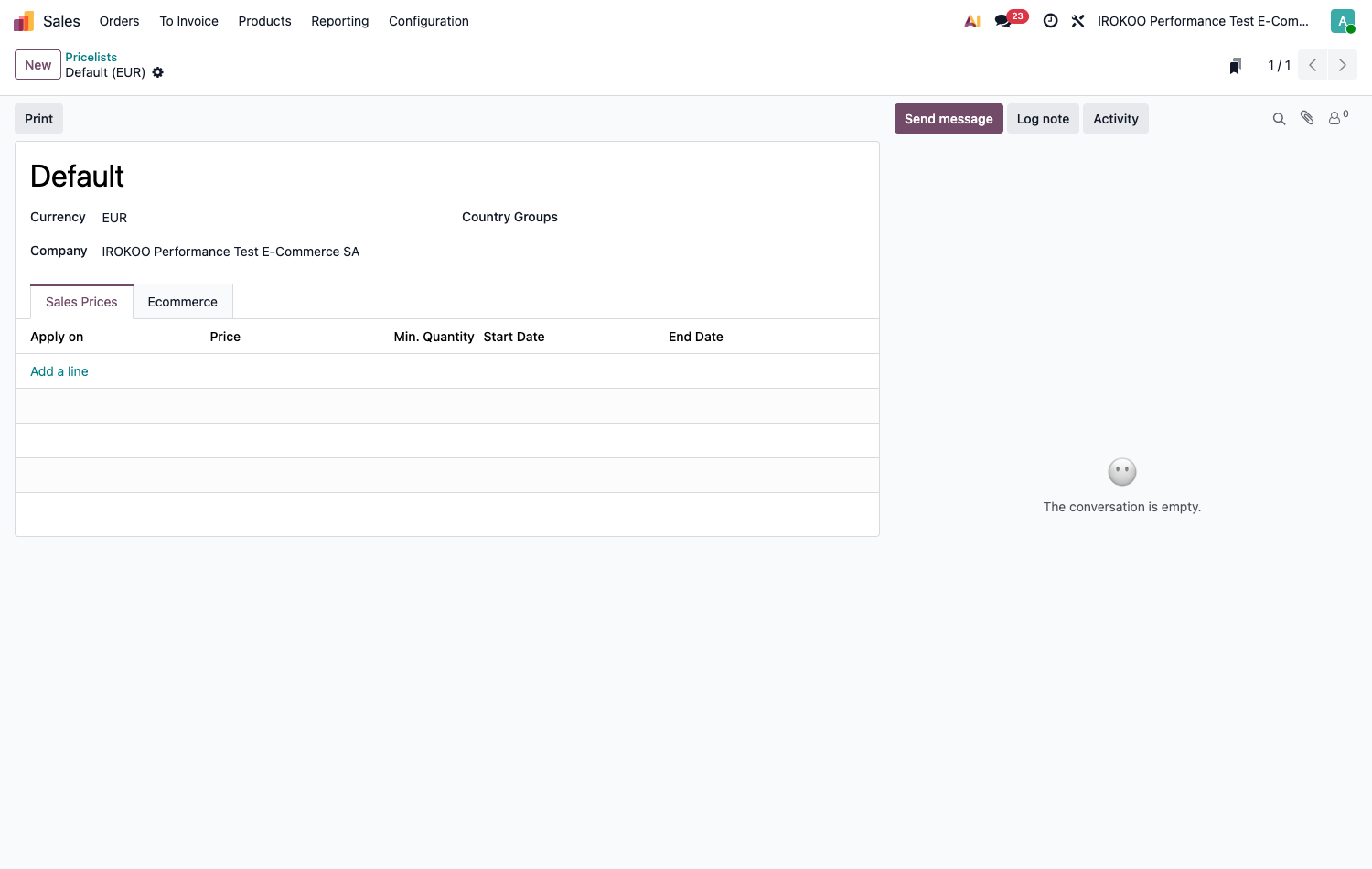
- Fill in the Currency of the list. It may differ from the company's: that is how you sell in a foreign currency.
- In the rules tab, define for each line: - the scope: one product, one category, or the whole catalogue; - the calculation mode: percentage discount off the sales price, fixed price, or a formula based on the cost; - the minimum quantity that triggers the rule; - the validity period.
- Assign the pricelist to the customers concerned, in the Sales tab of their contact record.
Note
A quotation drawn up with a pricelist in a foreign currency is denominated in that currency. Conversion into the company currency happens when the entry is posted, at the rate in force on the date of the document. There is therefore no need (and no benefit) in changing the company currency to sell for export.
Quantity discounts
To encourage volume, create several rules on the same product with increasing minimum quantities. Odoo automatically applies the rule matching the quantity entered on the quotation line.
Chaining pricelists
A rule does not necessarily start from the catalogue sales price. The Based price field offers three starting points: the Sales Price on the record, the Cost, or an Other Pricelist. This third choice lets you build a pricing tree instead of duplicating the same amounts across several lists.
Structuring your pricing
A single price reference, and cascading derivations:
- The sales price lives on the product record. It is the only place where an amount is entered, and the only one to update when prices are revised.
- A first, general list is based on that sales price. It carries the currency and any quantity breaks, without copying a single amount.
- The following lists are based on the general list and express only their difference: reseller discount, key account discount, export mark-up.
A catalogue-wide price revision is then made on the product records alone, and propagates through the whole chain. Each list now contains only what is specific to it (its discount) and becomes readable at a glance.
For the Reseller list applying a 20% discount off the List price list:
- Create the Reseller list and add a rule to it.
- In Apply To, choose Product and leave the product field empty: the rule then applies to the whole catalogue.
- Choose the Price Type Discount, enter
20, then designate List price in the pricelist field that follows.
Note
The cascade stays readable while the quotation is being written: the line shows the price coming from the list, and when the rule used is a Discount, the Unit Price remains the price before discount and the Disc.% column carries the rate. The salesperson therefore sees the reference amount and the difference applied, without having to open the pricelist.
This display assumes the line discounts option is enabled. A rule using Fixed Price or Formula does not lend itself to it: only the net price appears.
Note
Each link is evaluated in its own currency before conversion. A list in dollars based on a list in euros applies the rate of the day of the document to the intermediate amount, then the discount. Two successive conversions within the same chain can therefore produce a rounding difference on the final price.
Point d'attention
Odoo refuses a circular chain: a list that, directly or through an intermediary, would be based on itself. Creation is blocked by an error message when saving.
Setting an exception
The cascade sets the framework; exceptions are laid on top of it. The Apply To field delimits the scope of a rule, from the widest to the narrowest:
- Product with the product field left empty: the general rule of the list;
- Category: one family of the catalogue;
- Product with an item designated: that item and all its variations;
- the Variant field, which only appears if the item designated has at least two variations: a single one of them.
Within a given list, the most specific rule wins. A list can therefore carry a 20% discount across the board, a 5% discount on a sensitive category, and a Fixed Price on one particular variant: it is this last one that will apply to it.
Astuce
The Product Variant level is the right tool for a price that follows no logic at all: a rare finish sold at the price of a common one, an oversize invoiced separately. As long as the difference stays proportional, the Extra Price in the Attributes & Variants tab is preferable: it applies to every pricelist at once (see section 9.4).
Tracking costs
The Cost field on the product record carries the unit cost of the product. It serves two purposes: computing the margin on sales, and valuing stock.
Valuing stock means translating the quantities held into a financial value: a hundred pieces in the warehouse at fourteen euros each represent one thousand four hundred euros of assets on the balance sheet. That value appears in the company accounts, and Odoo keeps it up to date from the unit cost. Hence what is at stake: the way that cost is established determines what the stock is worth.
It is not set on the product but on its category, through the Costing Method field:
| Method | How the cost behaves |
|---|---|
| Standard Price | A fixed value, entered manually and revised periodically. |
| Average Cost (AVCO) | Recomputed automatically on every receipt, weighted by quantities. |
| First In First Out (FIFO) | Each layer of stock keeps the cost at which it came in. |
Point d'attention
The method chosen drives the value of stock recorded on the balance sheet: it therefore has direct accounting consequences and is chosen with the accountant. It is hard to change once movements have been recorded, since every change requires reworking the existing valuation.
Note
The full configuration (costing method, periodic or perpetual valuation, associated stock accounts ) is covered in section 15.8. At the catalogue stage, it is enough to know that the product's category determines how its cost evolves.
Vendor price and cost: two fields not to be confused
The product record carries two purchase amounts, fed by mechanisms that have nothing to do with each other.
| Amount | What makes it move |
|---|---|
| Vendor price (Purchase tab) | The price negotiated with a given vendor. It is never computed: it is entered, or created once when an order is confirmed. The product category has no effect on it. |
| Cost (General Information tab) | The unit cost of the product in stock. It is this one that the method defined on the category drives: never recomputed under standard price, recomputed on every receipt under average cost and under first in first out. |
Point d'attention
What "moves on its own" after a receipt is the cost, not the vendor price. An out-of-date vendor price stays out of date indefinitely, even if receipts are made at another price: only the cost follows the reality of what comes in.
Special products
Services billed on time spent
- Create a product of type Service.
- In the Sales tab, choose the appropriate invoicing policy: fixed price, on delivered quantities, or on timesheets.
- Link the product to a project if time is to be tracked in the Project app (see chapitre 18).
Packagings
A product can be handled by full packaging rather than by the unit: a box of twelve, a pallet of forty-eight boxes. Entry becomes faster both on receipt and on shipping, and the documents carry the quantity as the customer or the vendor understands it.
A packaging is a unit of measure: the box of twelve is not an object separate from the unit, it is another way of counting the same thing. Units therefore nest inside one another, each defined in relation to another.
- Enable Units of Measure & Packagings in Inventory › Configuration › Settings.
- Open Sales › Configuration › Products › Units & Packagings.
- Create the
Boxunit and fill in the Quantity line:12, then Units in the reference unit field that follows. - For a second level, create
Palletwhose Quantity is48in Box. Odoo works out the equivalent in units on its own. - On the product record, add these units to the Packagings field.
The packagings declared this way are offered when entering quotation lines, purchase order lines and stock movements. The quantity is still converted into the reference unit for stock and valuation: ordering two pallets does reserve one thousand one hundred and fifty-two pieces.
Note
Nesting is native: a unit is defined in relation to another, which may itself be defined in relation to a third. There is no depth limit, and no particular setting to enable in order to go beyond two levels.
Point d'attention
Do not confuse the packaging, which is a way of counting a product, with the package, which is an identified physical container: the box actually sealed, carrying its label, and whose contents are tracked through the operations. Packages are handled from the Inventory app and belong to logistics, not to the catalogue.
Importing a catalogue
Loading the catalogue follows the general procedure described in chapitre 22: export a few representative products to obtain the template, complete it, then import it back, testing first.
The order specific to the catalogue is as follows:
- The product categories, on which valuation and accounts depend.
- The units of measure and packagings, if the catalogue uses them.
- The vendors, before the prices that name them.
- The products themselves.
- The vendor prices and the pricelists, which reference the products.
Point d'attention
Variants are not imported as separate products. You import the record and its attributes; Odoo generates the variations according to the creation mode set on each attribute (see section 9.4).
Good practice
A catalogue that stays usable over time
- Establish a naming and referencing convention before creating the first products.
- Structure the categories according to accounting and logistics needs, not only commercial ones.
- Complete the sales and purchase descriptions: they save back-and-forth with customers and vendors.
- Attach good-quality images to the records intended for customers.
- Review costs periodically to keep margins accurate.