Routes and flow rules
À l'issue de ce chapitre
- understand what a route is and what it is for;
- set the number of receipt and delivery steps;
- know at which level to assign a route and which one wins;
- supply one warehouse from another;
- diagnose a flow that does not trigger as expected.
A route describes the path goods take: where they start from, where they pass through, where they arrive. It is the notion that governs the behaviour of the whole of Inventory, what gets created automatically, in which order and at what moment.
The subject has a reputation for being technical. It only appears so: everyday needs are settled by a few checkboxes, and you only go down to the level of the rules for genuinely unusual flows.
The principle
Take a delivery. In its simplest form, the goods leave stock and go to the customer: one operation. In an organised warehouse, they are first picked from the shelves, then packed, then handed to the carrier: three operations, three documents, three successive places.
A route is the description of that sequence. It is made up of rules, each describing one segment of the journey: from where to where, under which operation type, with which lead time.
What a route produces
A route moves nothing by itself. It tells Odoo which documents to create, and in which order, when a need appears: a sales order to be delivered, a stock that has fallen below its threshold, a component to be supplied to a workshop.
Confirming an order on a warehouse in three steps therefore creates three chained transfers, whereas the same order on a one-step warehouse creates only one. The user's action is identical; it is the route that differs.
The direction of a rule
Each rule carries an Action, which says in which direction the goods circulate.
| Action | Behaviour |
|---|---|
| Pull From | The need calls the goods. A demand is born at the destination, and the rule goes to the source to find something to satisfy it. This is the direction of most flows: a sales order triggers a picking, which in turn triggers a withdrawal. |
| Push To | The arrival of the goods causes their next movement. As soon as a product enters somewhere, the rule moves it on to the next place. This is the direction of receipt flows: what arrives at the dock goes to control, then to the shelves. |
| Pull & Push | Both at once, for a segment that must respond as much to a need expressed downstream as to an arrival upstream. |
The second decisive setting is the Supply Method, which says what the rule does when the goods are not where they should be.
| Method | Behaviour |
|---|---|
| Take From Stock | The rule draws on what is available. If nothing is available, the operation stays pending: no supply is triggered. |
| Trigger Another Rule | The rule does not look at the stock and systematically calls the upstream step: a purchase, a manufacturing order, a transfer. This is the mechanism of replenishment on order. |
| Take From Stock, if unavailable, Trigger Another Rule | Draws first on what is available, and only goes back up the chain for what is missing. |
Note
This is where the difference is played out between an item held in stock and an item supplied on demand. The Replenish on Order (MTO) setting in the settings, described in chapitre 10, is nothing but a route whose rule uses Trigger Another Rule.
The everyday setting: the number of steps
Most needs do not call for touching the routes at all. It is enough to say how many steps the receipt and the delivery have; Odoo builds the corresponding routes.
- Check that Multi-Step Routes is active in Inventory › Configuration › Settings.
- Open Inventory › Configuration › Warehouse Management › Warehouses.
- Open the warehouse concerned.
- Set the Incoming Shipments: - Receive and Store (1 step): the goods enter stock directly; - Receive then Store (2 steps): they pass through a receipt area before being put away; - Receive, Quality Control, then Store (3 steps): a check is inserted.
- Set the Outgoing Shipments: - Deliver (1 step): a single document, from stock to the customer; - Pick then Deliver (2 steps): picking, then shipping; - Pick, Pack, then Deliver (3 steps): picking, packing, then shipping.
- Save.
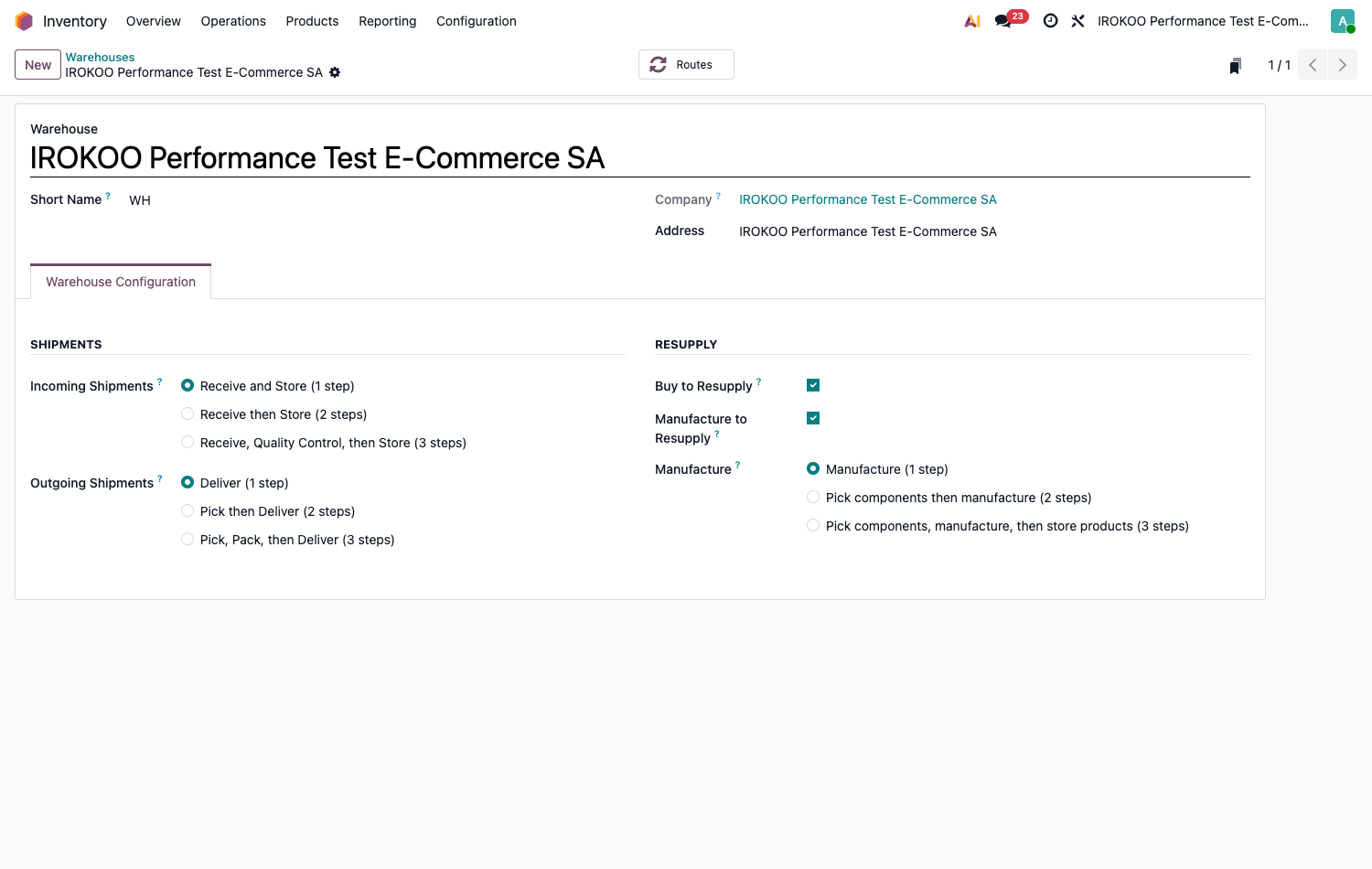
Setting the way to resupply. The Resupply block on the same record governs where the goods come from when they are missing:
- Buy to Resupply allows the warehouse to trigger requests for quotation;
- Manufacture to Resupply allows it to trigger manufacturing orders;
- Manufacture sets the number of steps of production, on the model of the receipts: Manufacture (1 step), the picking of the components separated into two steps, or the storage of the finished products separated into three;
- Resupply From designates the warehouse or warehouses that feed this one, covered later in this chapter. This field only appears with the multi-warehouse option active.
Note
Unticking either of these two options removes the corresponding path from this warehouse: a trading site can thus buy without ever manufacturing, and a workshop manufacture without buying. They do not decide what happens for a given product (that is settled by the route carried by its record) but what the warehouse is allowed to do.
Odoo then creates the intermediate locations needed (receipt area, quality control, packing, departure area) along with the operation types and the routes that link them. Nothing else has to be set up.
Astuce
Choose the number of steps according to your real organisation, not according to an ambition. Each step is one more document to validate: three steps in delivery assume that the picking, the packing and the handover to the carrier are actually done by different people or at different moments.
Where a route applies
A route is only worth something if it is assigned. Six assignment levels exist, and the corresponding box must be ticked on the route for it to be offered at that level.
| Level | Scope |
|---|---|
| Products | The route is offered in the Inventory tab of the product record. It applies to that item only. |
| Product Categories | The route is offered on the category, and applies to every product it contains. |
| Warehouses | The route becomes the default behaviour of the goods passing through that warehouse. |
| Package Type | The route applies according to the packaging used: a rare case, useful when the pallet and the parcel take different paths. |
| Shipping Methods | The route applies according to the carrier chosen. Assumes the Delivery Methods option. |
| Sales Order Lines | The route is offered on the quotation line, where the salesperson chooses it case by case. Assumes the Sales application. |
Astuce
These boxes only define where the route will be offered. Ticking Products applies it to no product at all: it still has to be added in the Inventory tab of the records concerned. It is the most frequent confusion about this configuration.
Which one wins
When several routes could apply, Odoo takes the first one it finds going down this order:
- the route carried by the sales order line itself, chosen by the salesperson;
- the route of the package type;
- the routes of the product;
- the routes of its category;
- the route of the warehouse.
The most precise therefore wins over the most general, and a route set on a product takes precedence over the default behaviour of the warehouse. At an equal level, the order of the routes among themselves decides.
Astuce
This ranking gives you what to do when in doubt: to change the behaviour of a single item, act on its record; for a whole family, on its category; for the whole site, on the warehouse. There is no need to create a route for every special case.
The routes provided
Odoo installs ready-made routes, which cover very nearly every need. They appear in Inventory › Configuration › Warehouse Management › Routes.
| Route | What it triggers |
|---|---|
| Buy | A request for quotation to the vendor of the product. This route is set on the warehouse, by the Buy to Resupply box: it is not ticked on an item. It only applies to products carrying at least one vendor in their Purchase tab. |
| Manufacture | A manufacturing order. This route too is carried by the warehouse, by the Manufacture to Resupply box, and it only applies to products that have a bill of materials. |
| Replenish on Order (MTO) | Supply at the moment of the sale rather than to rebuild stock. It is ticked on the product or its category; the how follows from the vendor or the bill of materials, not from a second route to tick. |
| Dropshipping | Shipment straight from the vendor to the customer, without passing through the warehouse. |
To these are added the multi-step receipt and delivery routes, one per warehouse, created and kept up to date by Odoo. They carry the name of the warehouse.
Point d'attention
Do not modify the routes that Odoo manages itself: those of the receipt and delivery steps. A change in the number of steps rebuilds them, and your modifications would be lost. For a particular behaviour, create a separate route and assign it to the products concerned only.
Supplying one warehouse from another
When a site supplies itself from another rather than from the vendors, the route creates itself.
- Open Inventory › Configuration › Warehouse Management › Warehouses.
- Open the warehouse that is to be supplied.
- In Resupply From, tick the supplying warehouse or warehouses.
- Save.
Odoo creates a transfer route between the two sites. It remains to be assigned to the products concerned, on their record or on their category.
Note
The same product can be resupplied from several sources: a central warehouse and a vendor. The order of the routes among themselves determines which one is tried first.
Refining placement within the warehouse
Routes say between which locations the goods circulate. Two other mechanisms specify what happens inside each of them: where to put away what arrives, and what to draw from on the way out.
Both assume the Storage Locations option is active.
Putting away automatically
A putaway rule directs goods to a precise location as soon as they arrive, rather than leaving the operator to choose. Heavy products on the floor, small parts in bins, chilled goods in the cold room: the rule carries the knowledge of the warehouse, not the operator.
- Open Inventory › Configuration › Warehouse Management › Putaway Rules.
- Click on New.
- Fill in: - the Product targeted, or its Product Category to cover a whole family; - the entry location in When product arrives in; - the destination in Store to.
- Save.
The destination proposed is then carried over to the receipt operations.
Note
When several rules could apply, the most precise wins, and this hierarchy is automatic: package type, then product, then exact category, then parent category. You have nothing to set for that. The order of the lines, which the drag handle lets you change, only decides between rules of equal precision.
Astuce
Start with the families, not with the items. A dozen rules per category covers the bulk of the putaway work, where one rule per item quickly becomes a set impossible to keep up to date.
Choosing which stock to draw from
A removal strategy determines which stock leaves first when the same quantity is held in several places.
| Strategy | What leaves first |
|---|---|
| First In First Out (FIFO) | The stock that entered longest ago. The default behaviour, and the right choice in most cases. |
| Last In First Out (LIFO) | The stock that entered most recently. Restricted use, and incompatible with the accounting rules of many countries. |
| First Expiry First Out (FEFO) | The lot whose expiry date is nearest. Only appears once the Expiration Dates have been activated, which belong to a separate application. |
| Closest Location | The stock nearest to the output point, to shorten the journeys. |
| Least Packages | The stock that lets the quantity be served with the fewest packages broken into. |
It is set in two places:
- on a location, through the Removal Strategy field, for everything stored there;
- on a product category, through the Force Removal Strategy field, which applies whatever the source location.
Point d'attention
The second name says it: set on the category, the strategy forces the behaviour and ignores what the locations indicate. Reserve it for the cases where the nature of the product requires it, perishable goods first of all , and let the locations decide for the rest.
Note
In the absence of a setting on the location, Odoo goes back up to the parent locations before falling back on the default behaviour. Setting the strategy on a whole zone is therefore enough to cover every location it contains.
Creating a bespoke route
The case is rare and deserves weighing up: a special route is one more behaviour to be understood by whoever takes the database over.
- Open Inventory › Configuration › Warehouse Management › Routes and click on New.
- Name the route explicitly: that name will appear on the product records.
- Tick the assignment levels you want.
- Add the Rules, one per segment of the journey, filling in for each one: - the Action and the Supply Method; - the Source Location and the Destination Location; - the Operation Type under which the transfers will be created; - the Lead Time, if that segment takes time.
- Save, then assign the route to a test product.
Point d'attention
The locations of the rules must chain together: the destination of one rule is the source of the next. A break in the chain shows up as a flow that stops with no message, the next step finding no applicable rule.
Astuce
Try every new route out on a test product and a test order before assigning it to the catalogue. A badly chained flow shows up in use, rarely on reading.
Diagnosing a flow
When the behaviour obtained is not the one expected, the cause is almost always in one of these four points.
| Symptom | What to check |
|---|---|
| No document is created | Is the route assigned to the product, to its category or to the warehouse? A route that exists but is not assigned never applies. |
| The wrong number of steps | The setting of the warehouse, not the route: that is what governs it. Check as well that the sales order is indeed on the expected warehouse. |
| Nothing is supplied despite zero stock | The supply method of the rule. In Take From Stock, the operation waits without triggering anything. |
| One route applies instead of another | The order of priority in section 16.4: a route set on the product wins over that of the warehouse. |
Note
The Routes and Rules menus are only visible once Multi-Step Routes has been activated, and are reserved for users holding the administration right on Inventory (see chapitre 6).