CRM: from lead to won deal
À l'issue de ce chapitre
- configure a pipeline and teams that match your sales cycle;
- record a lead, qualify it and convert it into an opportunity;
- move a deal forward and plan the follow-up actions;
- close a deal, won or lost, and analyse your performance.
The CRM app organises commercial activity: it records incoming contacts, tracks open deals in a visual pipeline, plans follow-up actions and measures the team's performance.
Configuring the CRM
Enabling the features you need
- Open CRM › Configuration › Settings.
- Enable the options that match your organisation: - Leads: separates raw, unqualified contacts from actual deals. Without this option, everything lands straight in the pipeline as an opportunity. - Lead Enrichment: automatically completes company information from the professional email address. - Recurring Revenues: tracks a recurring revenue alongside the one-off amount of the deal.
The Predictive Lead Scoring block sits in the same place, but it has no checkbox: scoring is always on. The block is there to review the criteria used and to re-run the computation (see chapitre 8). 1. Save.
Note
The Leads option suits organisations that receive a lot of contacts to sort through (trade shows, web forms, campaigns). If every incoming request is already an identified project, leave the option off and work directly with opportunities.
Defining the pipeline stages
Stages represent how far a deal has progressed through your sales cycle.
- Enable developer mode (see chapitre 3): without it, the Stages entry does not appear in the configuration menu.
- Open CRM › Configuration › Pipeline › Stages.
- Click New to add a stage, or open an existing stage to edit it.
- Fill in: - Stage Name: the label shown at the top of the column in the pipeline; - Sequence: the display order, from lowest to highest; - Is Won Stage?: tick this on the stage that marks the deal as closed; - Folded in Pipeline: hides the column when it is empty; - Sales Teams: restricts the stage to a single team, if cycles differ from one team to another; - Requirements: describes the conditions to be met to reach the stage. This text appears in the pipeline when hovering over the question mark.
Astuce
Keep to five or six stages. Salespeople do not keep an over-detailed pipeline up to date, and stages left blank distort forecasts far more reliably than a coarse but accurate pipeline.
Organising the sales teams
- Open CRM › Configuration › Sales Teams.
- Click New.
- Fill in the team name, the Team Leader and the Email Alias if the team is to receive requests by email.
- In the Members tab, add the salespeople concerned.
- Save.
Note
A team is defined by industry, by geographical area or by product range. It then serves as a filter in every sales report.
Recording and qualifying a lead
Creating a lead
- Open CRM › Leads.
- Click New.
- Fill in: - the subject of the request in the main field; - the Contact and the company concerned; - the Email and the Phone; - the Sales Team and the Salesperson responsible; - the Tags that will let you find the lead by topic.
- In the Extra Info tab, Marketing block, fill in the Source and the Campaign so that you can later measure where deals come from. This tab exists only on a lead: it disappears as soon as the lead is converted into an opportunity.
- Describe the need in the Notes tab.
- Save.
Converting a lead into an opportunity
Once the lead is qualified (the need is real, the contact is the right one, the budget exists) it becomes an opportunity and joins the pipeline.
- Open the lead.
- Click Convert to Opportunity.
- In the window that opens, choose: - Convert to opportunity to create a deal, or Merge with existing opportunities if a deal is already open for this customer; - the customer to link: select it if it already exists, create one otherwise.
- Check the Salesperson and the Sales Team assigned.
- Click Create Opportunity.
Note
Merging avoids duplicates when the same customer approaches you through several channels. The information and the history of both records are kept on the resulting deal.
Moving an opportunity forward
The pipeline
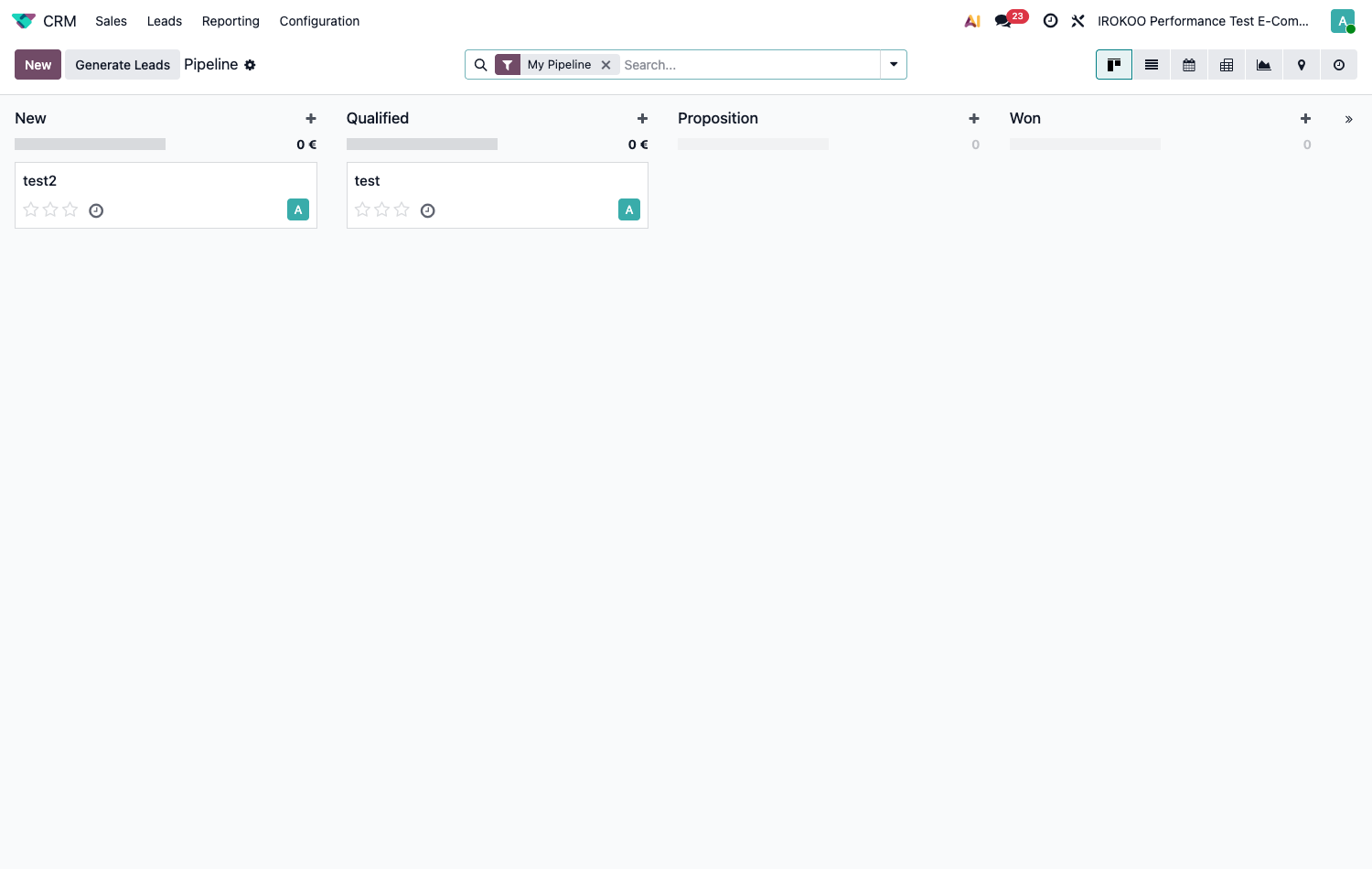
Open CRM › Sales › My Pipeline. Deals appear as cards, spread across columns corresponding to the stages.
- Drag a card to the next column to move the deal forward.
- Click a card to open the deal and complete its information.
- Use the colour dots and the tags to spot priorities at a glance.
Filling in the steering information
On every opportunity, keep the following up to date:
- Expected Revenue: the amount of the deal;
- Probability: the chances of closing, as a percentage;
- Expected Closing: the date by which the decision is expected.
Note
These three fields feed every sales forecast. An opportunity with no expected closing date appears in no forecast at all, whatever its amount.
Planning the next action
An activity is an action to be carried out, dated and assigned to someone, attached to a document. It is Odoo's internal follow-up mechanism, shared by every app; how it works in general is described in section 4.2.
- Open the opportunity.
- In the chatter, at the bottom of the form, click Activity.
- Choose the type among the tiles offered: call, meeting, email, to-do. This field has no label.
- Fill in the Due Date, the Assigned To user and a summary.
- Click Save.
Once the action is done, click Mark Done and immediately plan the next one.
Astuce
The most profitable rule in CRM fits in one sentence: no active opportunity should be left without a planned activity. The Activity view lets you check this at a glance.
Tracking the activity workload
From the pipeline, switch to the Activity view using the view icons at the top right. The screen is laid out as a table: one row per opportunity, one column per activity type, each header carrying the count of activities of that type. Clicking a cell lets you plan or review the corresponding activity.
The colour dots indicate urgency: overdue activities appear in red, today's in orange, later ones in green. This colour code is the same throughout the database, including on the clock icon in the top bar that gathers your activities across all apps (see section 4.2).
Closing the deal
Drawing up the quotation
- Open the opportunity.
- Click New Quotation.
- The quotation opens, pre-filled with the customer, the salesperson and a reference to the opportunity.
- Complete the product lines, the payment terms and the expiration date.
- Save, then send the quotation to the customer (see chapitre 11).
The quotation stays attached to the opportunity: the Quotations smart button, at the top of the form, shows how many proposals have been sent and their amount. Smart buttons give access to the documents linked to the one you are looking at (see section 3.4.2).
Marking the deal as won
- Open the opportunity, or drag it to the stage marked as won.
- Click Won.
Point d'attention
Marking an opportunity as won does not confirm the associated quotation. The order only exists once you have opened the quotation and clicked Confirm. Until that is done, no delivery and no invoice are triggered.
Recording a lost deal
- Open the opportunity.
- Click Lost.
- Select a Lost Reason and, if useful, add an explanation.
- Confirm.
The opportunity is archived but remains available: it feeds the analysis of lost reasons. To reopen it, display it through the Lost filter, then click Restore.
Note
Lost reasons are configured in CRM › Configuration › Pipeline › Lost Reasons. A short list of mutually exclusive reasons (price, lead time, competitor, no follow-up, out of scope) produces a usable analysis; a long list produces noise.
Analysing sales activity
The pipeline report
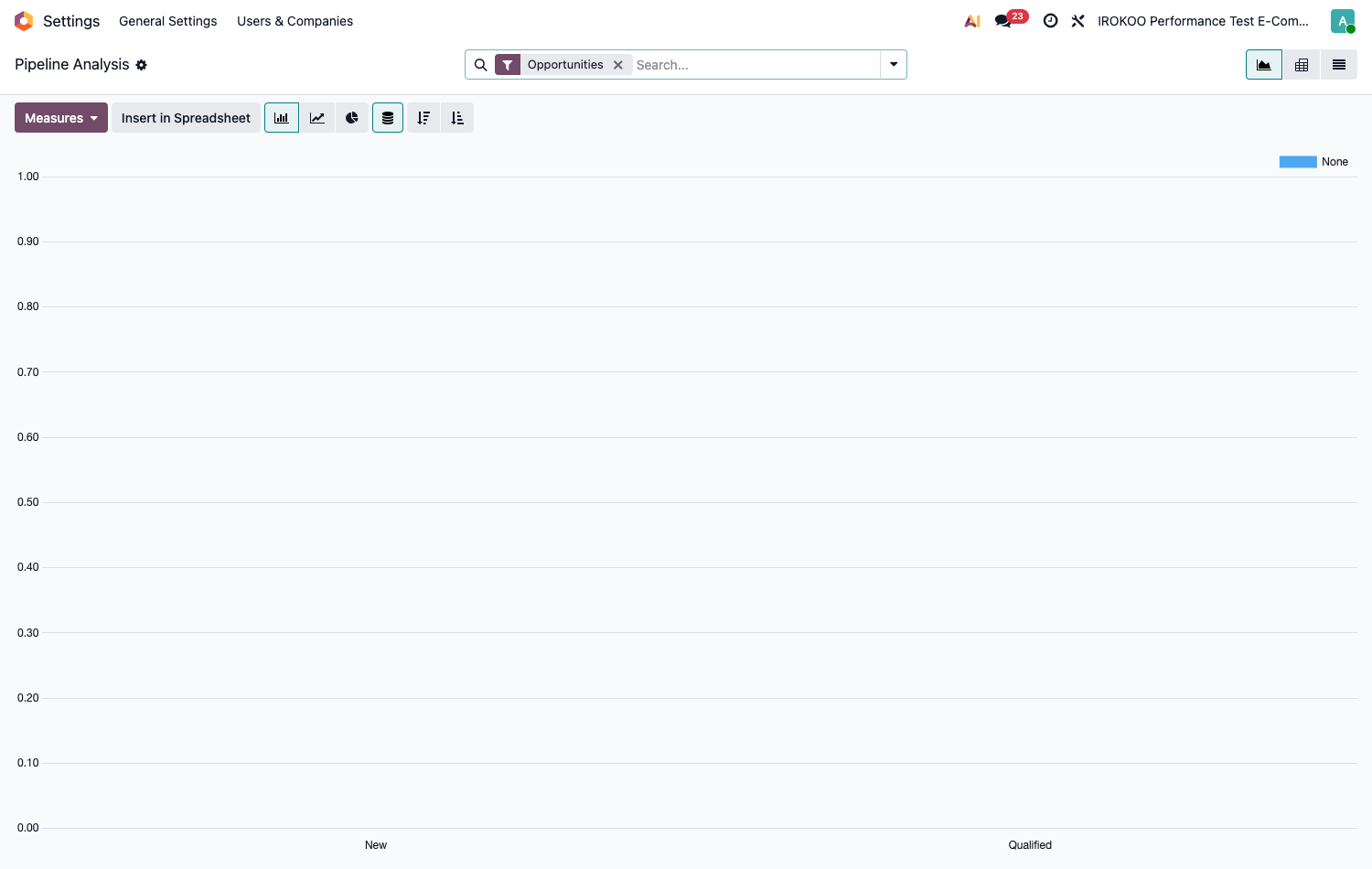
- Open CRM › Reporting › Pipeline.
- Choose the view that suits the question: graph for a trend, pivot table for figures, list for detail.
- Use Filters and Group By to cross period, team, salesperson, stage or lost reason.
The forecast
Open CRM › Reporting › Forecast to project the expected revenue by month, based on the expected closing dates and the probabilities entered.
Note
The reliability of the forecast depends entirely on the quality of the three steering fields. A weekly meeting to update the pipeline is worth more than a sophisticated report built on stale data.
Good practice
For a CRM that actually gets used
- Qualification: set written criteria for moving from lead to opportunity, and stick to them.
- Planning: always schedule the next action before closing a record.
- Traceability: record exchanges in the chatter of the opportunity, not in personal emails.
- Updating: review the pipeline at least once a week, amounts and dates included.
- Housekeeping: close deals that have gone nowhere rather than letting them grow old in the pipeline.